
我是廣告,點擊一下吧!
標籤
#Flutter (17) 、 #PHP (9) 、 #Laravel (7) 、 #MySQL (5) 、 #Mac (5) 、 #Dart (5) 、 #Android (3) 、 #List (2) 、 #Widget (2) 、 #Carbon (2) 、 #IDE (2) 、 #VS Code (2) 、 #Linux (2) 、 #Shell Script (2) 、 #Cursor Pagination (1) 、 #Pagination (1) 、 #floorMonth (1) 、 #subMonthNoOverflow (1) 、 #資安 (1) 、 #addMonthNoOverflow (1) 、 #subMonth (1) 、 #MySQL 效能 (1) 、 #Mac M1 (1) 、 #個人空間 (1) 、 #Android Splash Screen (1) 、 #Android vector (1) 、 #SVG (1) 、 #Directory Structure (1) 、 #SQL Injection (1) 、 #createFromTimestamp (1)
Flutter 利用 RepaintBoundary 將 Widget 轉成圖片
#Flutter、#Widget、#RepaintBoundary
在開發專案的過程中,常常會需要將畫面轉換成圖片,例如:在問題回報時附上 APP 截圖、分享邀請小卡、需包含各種資訊加簽名的螢幕截圖。
這時候就可以使用 RepaintBoundary ,原本他是將 Widget 獨立渲染防止不必要的重繪的,利用 RenderRepaintBoundary 的 toImage 可以轉換成 ui.Image ,再轉換成 Uint8List 就可以做很多事情了。
Preview
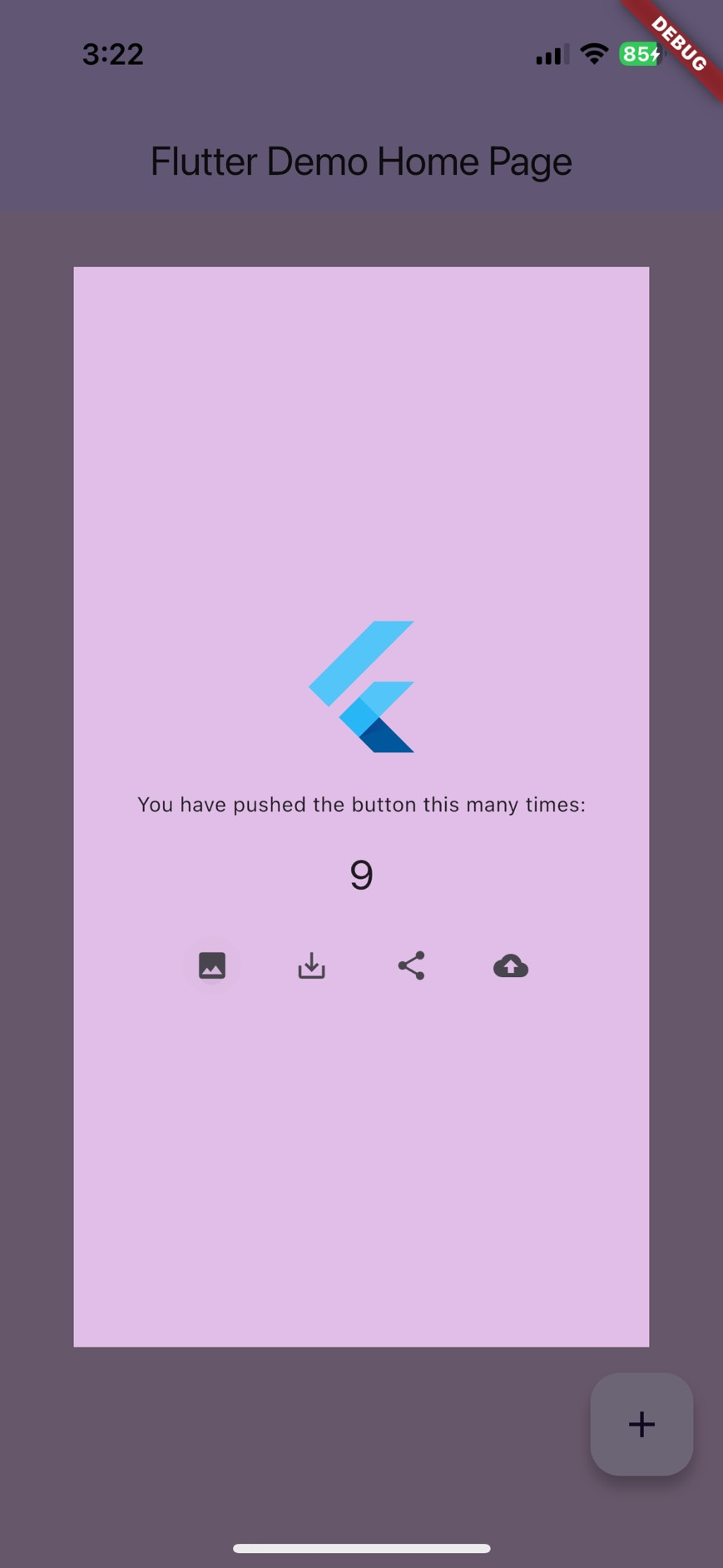
Widget 顯示
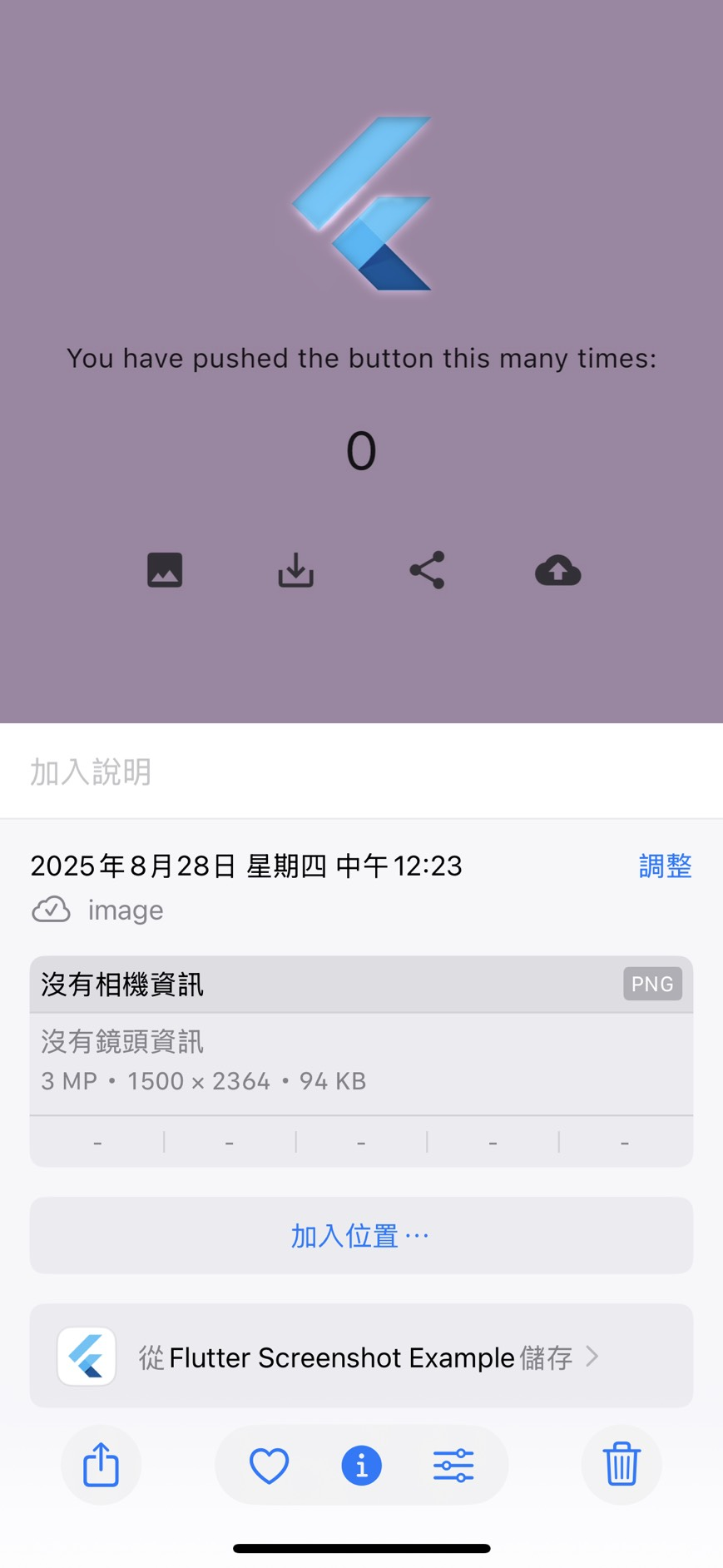
儲存到相簿
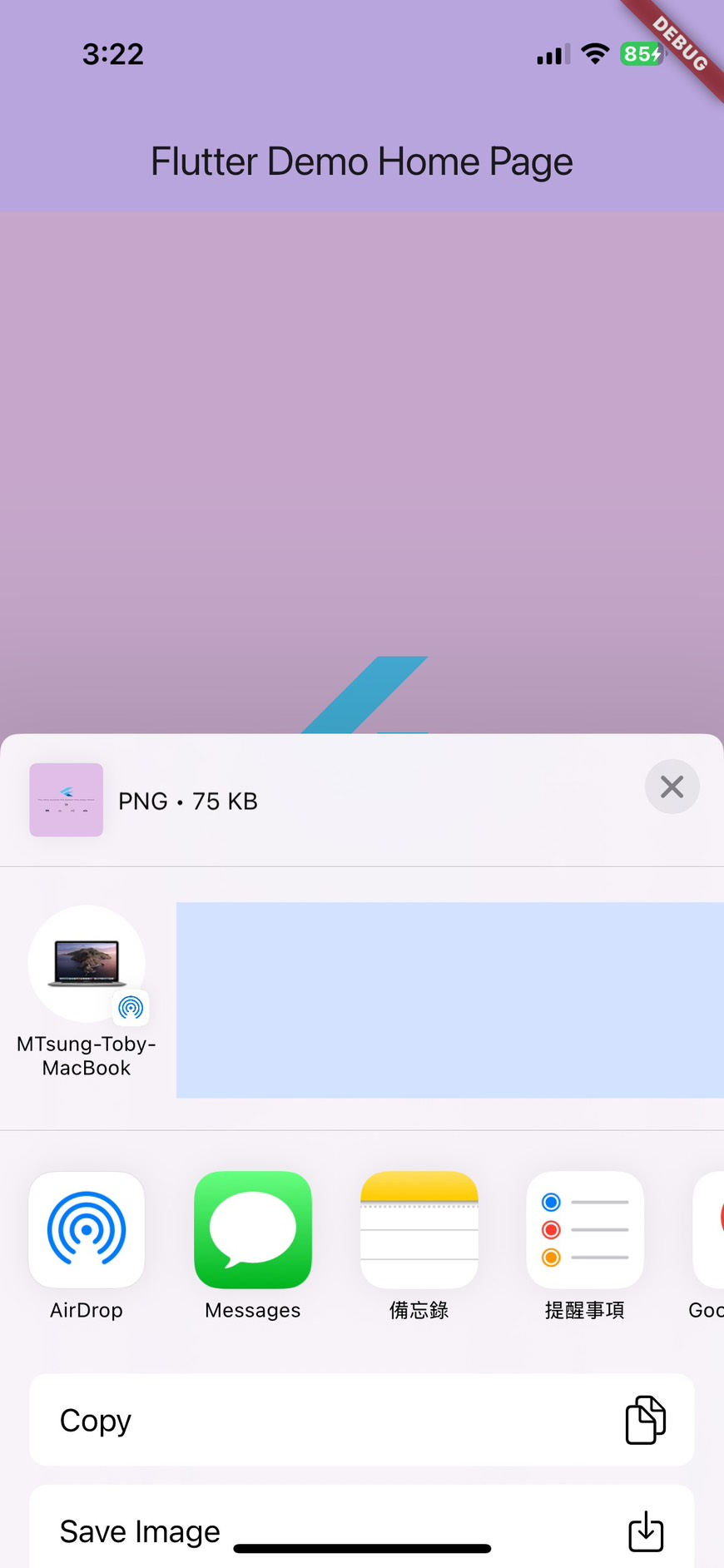
分享
Step
1. 設定 Key & RepaintBoundary
final GlobalKey _repaintBoundaryKey = GlobalKey();

RepaintBoundary(
    key: _repaintBoundaryKey,
    child: Text('widget'),
)
2. 取得 RenderRepaintBoundary
final RenderRepaintBoundary boundary = _repaintBoundaryKey.currentContext!.findRenderObject() as RenderRepaintBoundary;
3. 取得 pixelRatio
// 輸出寬 1500px PNG
final double pngWidth = 1500.0;
final double pixelRatio = pngWidth / MediaQuery.of(_repaintBoundaryKey.currentContext!).size.width;
4. 取得 ui.Image
final ui.Image uiImage = await renderRepaintBoundary.toImage(pixelRatio: pixelRatio);
5. 取得 Uint8List
final uint8List = return (await uiImage.toByteData(format: ui.ImageByteFormat.png))!.buffer.asUint8List();
6. 完整 Function
Future<Uint8List> _widgetToBytes() async {
    final RenderRepaintBoundary renderRepaintBoundary = _repaintBoundaryKey.currentContext!.findRenderObject() as RenderRepaintBoundary;

    // 輸出寬 1500px PNG
    final double pngWidth = 1500.0;

    final double pixelRatio = pngWidth / MediaQuery.of(_repaintBoundaryKey.currentContext!).size.width;

    final ui.Image uiImage = await renderRepaintBoundary.toImage(pixelRatio: pixelRatio);

    return (await uiImage.toByteData(format: ui.ImageByteFormat.png))!.buffer.asUint8List();
}
7. Call Function
使用時要確認 Widget 已經渲染完,否則會有
!debugNeedsPaint': is not true.的AssertionError。解決方法就是放在WidgetsBinding.instance.addPostFrameCallback((_) async {});裡面呼叫即可
AssertionError
_AssertionError ('package:flutter/src/rendering/proxy_box.dart': Failed assertion: line 3553 pos 12: '!debugNeedsPaint': is not true.)
正確呼叫
WidgetsBinding.instance.addPostFrameCallback((_) async {
  final bytes = await _widgetToBytes();
});
應用
有了 Uint8List 就可以:
-
在其他 Widget 上顯示,可使用 Image.memory
-
儲存到相簿,可使用 Gal package
-
分享,可使用 share_plus package
-
POST FormData 到後端,可使用 dio package
範例程式碼
import 'dart:typed_data';

import 'package:dio/dio.dart';
import 'package:flutter/material.dart';
import 'package:flutter/rendering.dart';
import 'dart:ui' as ui;

import 'package:gal/gal.dart';
import 'package:share_plus/share_plus.dart';

void main() {
  runApp(const MyApp());
}

class MyApp extends StatelessWidget {
  const MyApp({super.key});

  // This widget is the root of your application.
  @override
  Widget build(BuildContext context) {
    return MaterialApp(
      title: 'Flutter Screenshot Example',
      theme: ThemeData(
        // This is the theme of your application.
        //
        // TRY THIS: Try running your application with "flutter run". You'll see
        // the application has a purple toolbar. Then, without quitting the app,
        // try changing the seedColor in the colorScheme below to Colors.green
        // and then invoke "hot reload" (save your changes or press the "hot
        // reload" button in a Flutter-supported IDE, or press "r" if you used
        // the command line to start the app).
        //
        // Notice that the counter didn't reset back to zero; the application
        // state is not lost during the reload. To reset the state, use hot
        // restart instead.
        //
        // This works for code too, not just values: Most code changes can be
        // tested with just a hot reload.
        colorScheme: ColorScheme.fromSeed(seedColor: Colors.deepPurple),
      ),
      home: const MyHomePage(title: 'Flutter Demo Home Page'),
    );
  }
}

class MyHomePage extends StatefulWidget {
  const MyHomePage({super.key, required this.title});

  // This widget is the home page of your application. It is stateful, meaning
  // that it has a State object (defined below) that contains fields that affect
  // how it looks.

  // This class is the configuration for the state. It holds the values (in this
  // case the title) provided by the parent (in this case the App widget) and
  // used by the build method of the State. Fields in a Widget subclass are
  // always marked "final".

  final String title;

  @override
  State<MyHomePage> createState() => _MyHomePageState();
}

class _MyHomePageState extends State<MyHomePage> {
  final GlobalKey _repaintBoundaryKey = GlobalKey();

  void _showSuccess() => ScaffoldMessenger.of(context).showSnackBar(SnackBar(content: Text('Success')));

  Future<Uint8List> _widgetToBytes() async {
    final RenderRepaintBoundary renderRepaintBoundary = _repaintBoundaryKey.currentContext!.findRenderObject() as RenderRepaintBoundary;

    // 輸出寬 1500px PNG
    final double pngWidth = 1500.0;

    final double pixelRatio = pngWidth / MediaQuery.of(_repaintBoundaryKey.currentContext!).size.width;

    final ui.Image uiImage = await renderRepaintBoundary.toImage(pixelRatio: pixelRatio);

    return (await uiImage.toByteData(format: ui.ImageByteFormat.png))!.buffer.asUint8List();
  }

  Future<void> _show() async {
    WidgetsBinding.instance.addPostFrameCallback((_) async {
      final bytes = await _widgetToBytes();

      if (mounted) {
        showDialog(
          context: context,
          builder: (_) => Dialog(child: Image.memory(bytes)),
        );

        _showSuccess();
      }
    });
  }

  Future<void> _save() async {
    WidgetsBinding.instance.addPostFrameCallback((_) async {
      final bytes = await _widgetToBytes();

      await Gal.putImageBytes(bytes);

      _showSuccess();
    });
  }

  Future<void> _share() async {
    WidgetsBinding.instance.addPostFrameCallback((_) async {
      final bytes = await _widgetToBytes();

      final params = ShareParams(files: [XFile.fromData(bytes, mimeType: 'image/png')]);

      SharePlus.instance.share(params);

      _showSuccess();
    });
  }

  Future<void> _upload() async {
    WidgetsBinding.instance.addPostFrameCallback((_) async {
      final bytes = await _widgetToBytes();

      final formData = FormData.fromMap({'file': MultipartFile.fromBytes(bytes)});

      try {
        await Dio().post('https://example.com/upload', data: formData);

        _showSuccess();
      } on DioException catch (e) {
        debugPrint('fail:${e.message}');
      }
    });
  }

  int _counter = 0;

  void _incrementCounter() {
    setState(() {
      // This call to setState tells the Flutter framework that something has
      // changed in this State, which causes it to rerun the build method below
      // so that the display can reflect the updated values. If we changed
      // _counter without calling setState(), then the build method would not be
      // called again, and so nothing would appear to happen.
      _counter++;
    });
  }

  @override
  Widget build(BuildContext context) {
    // This method is rerun every time setState is called, for instance as done
    // by the _incrementCounter method above.
    //
    // The Flutter framework has been optimized to make rerunning build methods
    // fast, so that you can just rebuild anything that needs updating rather
    // than having to individually change instances of widgets.
    return Scaffold(
      appBar: AppBar(
        // TRY THIS: Try changing the color here to a specific color (to
        // Colors.amber, perhaps?) and trigger a hot reload to see the AppBar
        // change color while the other colors stay the same.
        backgroundColor: Theme.of(context).colorScheme.inversePrimary,
        // Here we take the value from the MyHomePage object that was created by
        // the App.build method, and use it to set our appbar title.
        title: Text(widget.title),
      ),
      body: RepaintBoundary(
        key: _repaintBoundaryKey,
        child: Container(
          color: Colors.purple.shade100,
          child: Column(
            // Column is also a layout widget. It takes a list of children and
            // arranges them vertically. By default, it sizes itself to fit its
            // children horizontally, and tries to be as tall as its parent.
            //
            // Column has various properties to control how it sizes itself and
            // how it positions its children. Here we use mainAxisAlignment to
            // center the children vertically; the main axis here is the vertical
            // axis because Columns are vertical (the cross axis would be
            // horizontal).
            //
            // TRY THIS: Invoke "debug painting" (choose the "Toggle Debug Paint"
            // action in the IDE, or press "p" in the console), to see the
            // wireframe for each widget.
            spacing: 20,
            mainAxisAlignment: MainAxisAlignment.center,
            children: <Widget>[
              FlutterLogo(size: 100),
              const Text('You have pushed the button this many times:'),
              Text('$_counter', style: Theme.of(context).textTheme.headlineMedium),
              Row(
                spacing: 20,
                mainAxisAlignment: MainAxisAlignment.center,
                children: [
                  IconButton(onPressed: _show, icon: Icon(Icons.image)),
                  IconButton(onPressed: _save, icon: Icon(Icons.save_alt)),
                  IconButton(onPressed: _share, icon: Icon(Icons.share)),
                  IconButton(onPressed: _upload, icon: Icon(Icons.cloud_upload)),
                ],
              ),
            ],
          ),
        ),
      ),
      floatingActionButton: FloatingActionButton(
        onPressed: _incrementCounter,
        tooltip: 'Increment',
        child: const Icon(Icons.add),
      ), // This trailing comma makes auto-formatting nicer for build methods.
    );
  }
}
更多詳細設定
參考:
https://api.flutter.dev/flutter/rendering/RenderRepaintBoundary/toImage.html